
转换坐标
当你 缩放平移视图 后,想在画布中用鼠标创建图形,会发现将 事件坐标 x, y 给到图形,位置已经不对了,此时就需要用到 转换坐标 的功能。
先了解一下坐标系的原理
我们的引擎是一个多层级的树状结构,层层嵌套,每个层级都有独立的 x、y、scaleX、scaleY、rotation、skewX、skewY 属性,这些属性因子构成了一个个独立起点的房间(坐标系)。
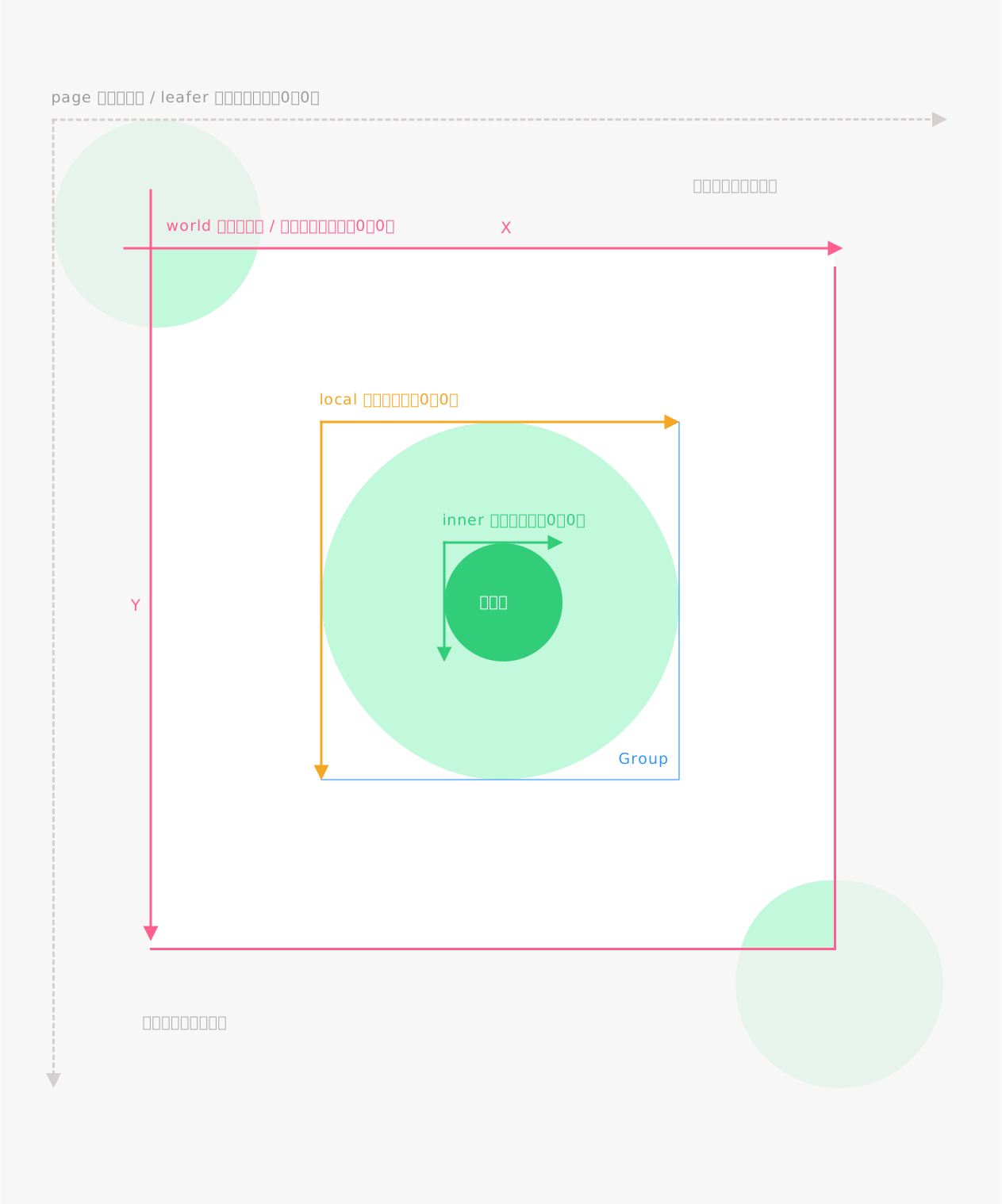
转换坐标 的原理就是转换不同层级间的这些属性因子关系,省去手动计算。
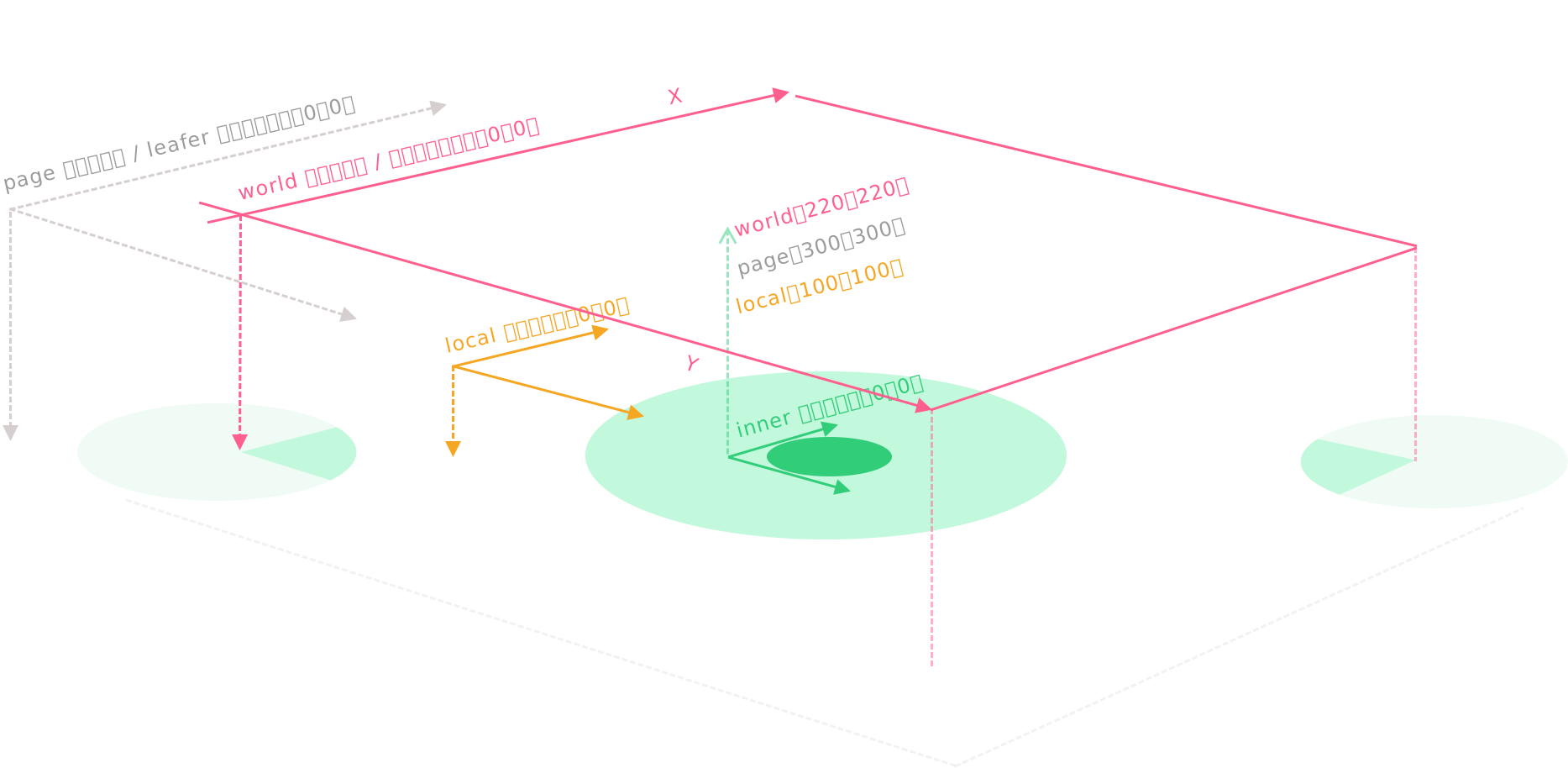
world 世界坐标系
在画布上的坐标,类似 HTML 的 client 坐标系,以画布左上角为起点。
page 场景坐标系
在 leafer 或 app.tree 内的坐标, 类似 HTML 的 page 坐标系,以 缩放层 为起点。
local 本地坐标系
相对父元素的坐标,类似 HTML 的 offset 坐标系,以父元素为起点。
inner 内部坐标系
在元素、组元素内的坐标,以元素的 x,y 位置为起点。
box 坐标系
在元素、组元素 box 包围盒 内的坐标,以元素实际内容的左上角为起点。
示例
我们通过 画笔工具 的例子, 来了解 转换坐标 的作用
按下鼠标拖动开始画线,抬起结束,当缩放平移视图后,仍然可以准确绘制新的线条。
ts
// #画笔工具示例
import { Leafer, DragEvent, Pen } from 'leafer-ui'
import '@leafer-in/viewport'

const leafer = new Leafer({ view: window, type: 'design', fill: '#333', })

leafer.add({ tag: 'Text', x: 100, y: 100, text: '按下鼠标拖动开始画线,抬起结束', fill: '#999', fontSize: 16 })

const pen = new Pen()
leafer.add(pen)

// 按下鼠标拖动开始画线,抬起结束,当缩放平移视图后,仍然可以准确绘制新的线条
leafer.on(DragEvent.START, (e: DragEvent) => {
    const point = e.getPagePoint() // 转换事件为 page 坐标 = pen.getPagePoint(e)
    pen.setStyle({ stroke: '#32cd79', strokeWidth: 10, strokeCap: 'round', strokeJoin: 'round' })
    pen.moveTo(point.x, point.y)
})

leafer.on(DragEvent.DRAG, (e: DragEvent) => {
    const point = e.getPagePoint() // 转换事件为 page 坐标 = pen.getPagePoint(e)
    pen.lineTo(point.x, point.y)
})
js
// #画笔工具示例
import { Leafer, DragEvent, Pen } from 'leafer-ui'
import '@leafer-in/viewport'

const leafer = new Leafer({ view: window, type: 'design', fill: '#333', })

leafer.add({ tag: 'Text', x: 100, y: 100, text: '按下鼠标拖动开始画线,抬起结束', fill: '#999', fontSize: 16 })

const pen = new Pen()
leafer.add(pen)

// 按下鼠标拖动开始画线,抬起结束,当缩放平移视图后,仍然可以准确绘制新的线条
leafer.on(DragEvent.START, (e) => {
    const inner = e.getPagePoint() // 转换事件为 page 坐标 = pen.getPagePoint(e)
    pen.setStyle({ stroke: '#32cd79', strokeWidth: 10, strokeCap: 'round', strokeJoin: 'round' })
    pen.moveTo(inner.x, inner.y)
})

leafer.on(DragEvent.DRAG, (e) => {
    const inner = e.getPagePoint() // 转换事件为 page 坐标 = pen.getPagePoint(e)
    pen.lineTo(inner.x, inner.y)
})
拖拽创建图形
拖拽 dom 元素到画布中创建图形,需要使用浏览器原生坐标转换
ts
// #拖拽创建图形 [添加到 tree]
import { App, Rect, Ellipse } from 'leafer-ui'
import '@leafer-in/editor' // 导入图形编辑器插件
import '@leafer-in/viewport' // 导入视口插件 (可选)

// 创建可拖拽的 dom 图形(圆形、矩形)
document.body.innerHTML = `
<div id="circle" draggable="true" style="width: 50px; height: 50px; border-radius: 25px; background-color: #32cd79; cursor: move; display: inline-block" ></div>
<div id="rect" draggable="true" style="width: 50px; height: 50px; background-color: #32cd79; cursor: move; display: inline-block" ></div>
<div id="leafer" style="position: absolute; top: 70px; right: 0; bottom: 0; left: 0;"></div>
`

// 创建应用
const app = new App({ view: 'leafer', fill: '#333', editor: {} })

app.tree.add({ tag: 'Text', x: 100, y: 100, text: '可拖拽上方图形到这里', fill: '#999', fontSize: 16 })


// 设置拖拽数据
document.getElementById('rect').addEventListener('dragstart', function (e) {
    e.dataTransfer.setData("type", 'rect')
})

document.getElementById('circle').addEventListener('dragstart', function (e) {
    e.dataTransfer.setData("type", 'circle')
})


// 让画布可以接收拖拽内容
document.getElementById('leafer').addEventListener('dragover', function (e) {
    e.preventDefault()
})

// 拖拽释放,创建相应图形
document.getElementById('leafer').addEventListener('drop', function (e) {
    const type = e.dataTransfer.getData("type")
    const point = app.getPagePointByClient(e) // 浏览器原生事件的 client 坐标 转 应用的 page 坐标
    if (type === 'rect') {
        app.tree.add(Rect.one({ fill: '#32cd79', editable: true }, point.x, point.y))
    } else if (type === 'circle') {
        app.tree.add(Ellipse.one({ fill: '#32cd79', editable: true }, point.x, point.y))
    }
})
ts
// #拖拽创建图形 [添加到 Frame]
import { App, Frame, Rect, Ellipse } from 'leafer-ui'
import '@leafer-in/editor' // 导入图形编辑器插件
import '@leafer-in/viewport' // 导入视口插件 (可选)

// 创建可拖拽的 dom 图形(圆形、矩形)
document.body.innerHTML = `
<div id="circle" draggable="true" style="width: 50px; height: 50px; border-radius: 25px; background-color: #32cd79; cursor: move; display: inline-block" ></div>
<div id="rect" draggable="true" style="width: 50px; height: 50px; background-color: #32cd79; cursor: move; display: inline-block" ></div>
<div id="leafer" style="position: absolute; top: 70px; right: 0; bottom: 0; left: 0;"></div>
`

// 创建应用
const app = new App({ view: 'leafer', fill: '#333', editor: {} })

const frame = Frame.one({
    children: [{ tag: 'Text', x: 100, y: 100, text: '可拖拽上方图形到这里', fill: '#999', fontSize: 16 }]
}, 100, 100, 500, 500)

app.tree.add(frame)


// 设置拖拽数据
document.getElementById('rect').addEventListener('dragstart', function (e) {
    e.dataTransfer.setData("type", 'rect')
})

document.getElementById('circle').addEventListener('dragstart', function (e) {
    e.dataTransfer.setData("type", 'circle')
})


// 让画布可以接收拖拽内容
document.getElementById('leafer').addEventListener('dragover', function (e) {
    e.preventDefault()
})

// 拖拽释放,创建相应图形
document.getElementById('leafer').addEventListener('drop', function (e) {
    const type = e.dataTransfer.getData("type")
    const point = app.getWorldPointByClient(e) // 浏览器原生事件的 client 坐标 转 世界坐标
    const framePoint = frame.getInnerPoint(point) // 世界坐标 再转 frame 内坐标
    if (type === 'rect') {
        frame.add(Rect.one({ fill: '#32cd79', editable: true }, framePoint.x, framePoint.y))
    } else if (type === 'circle') {
        frame.add(Ellipse.one({ fill: '#32cd79', editable: true }, framePoint.x, framePoint.y))
    }
})
转换方法
事件中的坐标转换方法
UIEvent PointerEvent DragEvent MoveEvent
元素上的坐标转换方法
| 名称 | 描述 |
|---|---|
| worldTransform | 相对于世界坐标的变换矩阵, 包含 scaleX、scaleY 属性,转换坐标的因子 |
| localTransform | 相对于父元素的变换矩阵,转换坐标的因子 |
| getPagePoint() | 获取 page 坐标( 世界坐标 转 page 坐标 ),支持转换移动距离 |
| getLocalPoint() | 获取本地坐标( 世界坐标 转 本地坐标 ),支持转换移动距离 |
| getInnerPoint() | 获取内部坐标( 世界坐标 转 内部坐标 ),支持转换移动距离 |
| getBoxPoint() | 获取 box 坐标( 世界坐标 转 box 坐标 ),支持转换移动距离 |
| getWorldPointByPage() | 获取世界坐标( page 坐标 转 世界坐标 ),支持转换移动距离 |
| getWorldPointByLocal() | 获取世界坐标( 本地坐标 转 世界坐标 ),支持转换移动距离 |
| getInnerPointByLocal() | 获取内部坐标( 本地坐标 转 内部坐标 ),支持转换移动距离 |
| getWorldPoint() | 获取世界坐标( 内部坐标 转 世界坐标 ),支持转换移动距离 |
| getLocalPointByInner() | 获取本地坐标( 内部坐标 转 本地坐标 ),支持转换移动距离 |
| getBoxPointByInner() | 获取 box 坐标( 内部坐标 转 box 坐标 ),支持转换移动距离 |
| getWorldPointByBox() | 获取世界坐标( box 坐标 转 世界坐标 ),支持转换移动距离 |
| getInnerPointByBox() | 获取内部坐标( box 坐标 转 内部坐标 ),支持转换移动距离 |
浏览器原生事件的坐标转换方法
| 名称 | 描述 |
|---|---|
| getWorldPointByClient() | 获取 世界坐标(浏览器原生事件的 client 坐标 转 世界坐标),只能在 App 或 Leafer 实例上调用此方法 |
| getPagePointByClient() | 获取 page 坐标(浏览器原生事件的 client 坐标 转 page 坐标),只能在 App 或 Leafer 实例上调用此方法 |