
Robot Element
The Robot element is similar to a game sprite. It integrates frame playback and preset actions, allowing you to quickly create game characters with walking and attack animations.
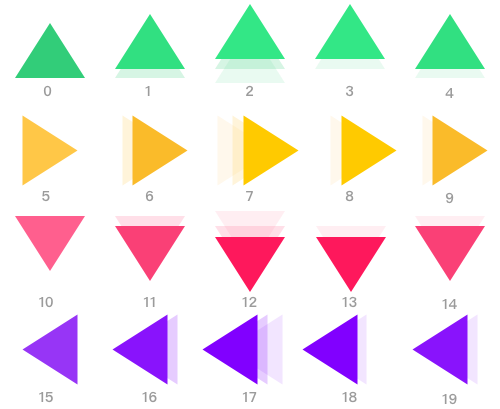
You can provide a list of images, or one or multiple sprite sheets containing animation actions. These actions will be automatically indexed, as shown below:
Try holding and releasing different arrow keys~
Inheritance
Robot > UI
Install Plugin
You need to install the robot plugin to use it. Visit Github repository.
npm install @leafer-in/robotpnpm add @leafer-in/robotyarn add @leafer-in/robotbun add @leafer-in/robotOr include via script tag and access plugin features through the global variable LeaferIN.robot.
<script src="https://unpkg.com/@leafer-in/robot@2.3.1/dist/robot.min.js"></script>
<script>
  const { Robot } = LeaferIN.robot
</script><script src="https://unpkg.com/@leafer-in/robot@2.3.1/dist/robot.js"></script>
<script>
const { Robot } = LeaferIN.robot
</script>Key Properties
robot: IRobotKeyframe | IRobotKeyframe[]
The robot sprite frame sequence. Frames are loaded in order and indexed starting from 0.
You can provide a list of images, or one or multiple sprite sheets with different sizes. Frames can be extracted using offset and size.
interface IRobotKeyframe {
  url: string // image source

  offset?: IPointData // starting position for slicing frames (left-to-right, top-to-bottom), default 0,0
  size?: number | ISizeData // size of each frame; not required for separate images
  total?: number // total frames in a sprite sheet (required if using sprite sheet)
}
actions: IRobotActions
Preset action list (a key-value object composed of frame indices).
If defined as an array of numbers, frames will loop automatically according to FPS.
interface IRobotActions {
  [name: string]: number | number[] | IRobotAnimation // frame indices (start from 0)
}

interface IRobotAnimation {
  keyframes: number[] // frame indices
  loop?: boolean | number
  FPS?: number
}
action: string
Current action name of the element. It must match a key in actions. Default is empty.
now: number
Current playing frame index.
FPS: number
Frames per second. Default is 12, max is 60.
loop: boolean
Whether the current action loops playback.
Inheritance
Robot > UI
Example
Interactive game arrow
// #创建 Robot 游戏元素
import { Leafer, KeyEvent } from 'leafer-ui'
import { Robot } from '@leafer-in/robot' // 导入 robot 插件

const leafer = new Leafer({ view: window })

const robot = new Robot({
    robot: { url: '/image/arrows.png', size: { width: 100, height: 100 }, total: 20 },
    actions: {  // 预设游戏动作(通过动作帧)
        up: 0, // 静止向上的箭头( 编号为0的动作帧)
        right: 5,
        down: 10,
        left: 15,
        arrowUp: [0, 1, 2, 3, 4], // 动态向上的箭头(循环播放编号为 1-4 的动作帧)
        arrowRight: [5, 6, 7, 8, 9],
        arrowDown: [10, 11, 12, 13, 14],
        arrowLeft: [15, 16, 17, 18, 19]
    },
    action: 'arrowRight' // 设置动作:动态向右的箭头
})

leafer.add(robot)

// 监听方向键进行交互

let speed = 5

leafer.on(KeyEvent.DOWN, (e: KeyEvent) => {
    speed++
    switch (e.code) { // 动态的方向箭头
        case 'ArrowUp':
            robot.action = 'arrowUp'
            robot.y -= speed
            break
        case 'ArrowDown':
            robot.action = 'arrowDown'
            robot.y += speed
            break
        case 'ArrowLeft':
            robot.action = 'arrowLeft'
            robot.x -= speed
            break
        case 'ArrowRight':
            robot.action = 'arrowRight'
            robot.x += speed
            break
    }
})

leafer.on(KeyEvent.UP, (e: KeyEvent) => {
    speed = 5
    switch (e.code) { // 静态的方向箭头
        case 'ArrowUp':
            robot.action = 'up'
            break
        case 'ArrowDown':
            robot.action = 'down'
            break
        case 'ArrowLeft':
            robot.action = 'left'
            break
        case 'ArrowRight':
            robot.action = 'right'
            break
    }
})