
App
Create an App instance (optional structure). Learn about initialization from App configuration and viewport interaction.
It is responsible for hosting multiple layered Leafer engines working together to improve performance, while also inheriting part of Leafer’s functionality and events.
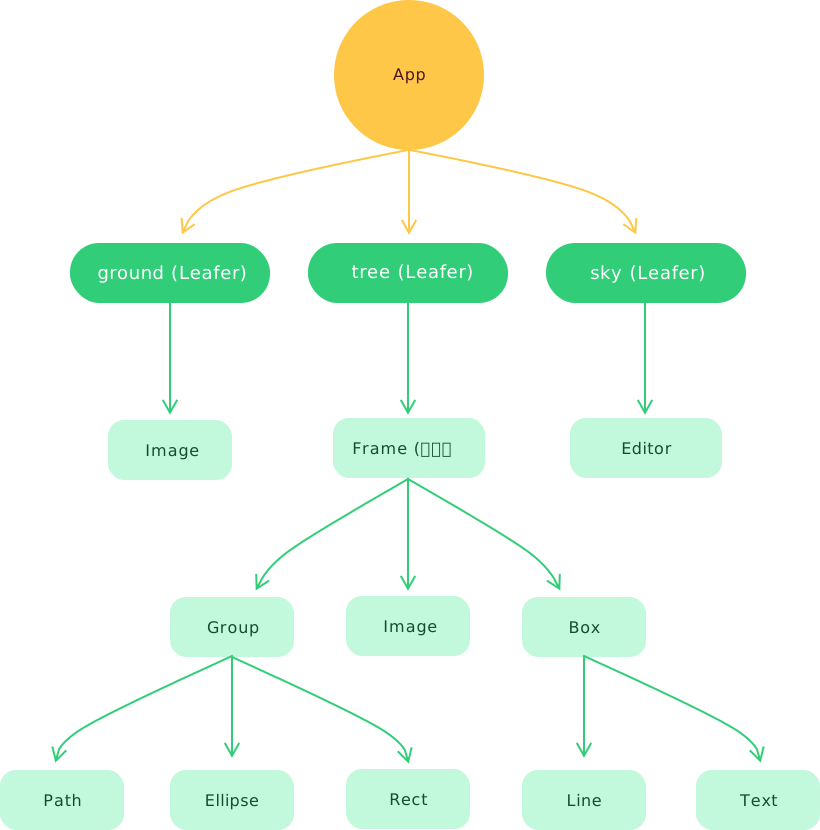
Inheritance
Interaction events can propagate across multiple child Leafer engines by layer hierarchy, making it behave like a single unified interactive system.
Note: App does not receive data change events from child elements. Please listen to these events on the corresponding child Leafer engine instead.
Key Properties
isApp: boolean
Whether this is an App instance. Defaults to true.
children: Leafer[]
List of child Leafer engines.
mode: ILeaferMode
Sets the interaction mode of the application. Defaults to normal. See example.
Setting it to 'draw' enters drawing mode, which disables the graph editor, and graphic elements will no longer respond to interaction events.
Setting it to 'preview' enters preview mode, which also disables the graph editor, but graphic elements will still respond to interaction events.
Changing the mode will trigger the LeaferEvent.UPDATE_MODE event.
type ILeaferMode =
  | 'normal' // normal mode
  | 'draw' // drawing mode
  | 'preview' // preview mode
Unified Structure
By default, App can add multiple custom engine layers via the add() method. To make it easier to understand and communicate, we use real-world metaphors to name common Leafer engine layers and support quick creation through configuration.
ground?: Leafer
Ground layer (background layer), the bottom-most Leafer engine, typically used for rendering backgrounds and grid content (optional).
tree: Leafer
Tree structure (main content layer), the middle Leafer engine, equivalent to the <body> in HTML.
sky: Leafer
Sky layer (overlay/interaction layer), the top-most Leafer engine, typically used to render graph editor instances.
Reserved Properties
editor: IEditor
Graph editor instance. Requires installing the graph editor plugin.
Viewport Properties (viewport)
zoomLayer:Group
Zoom/pan view layer. By default, it uses app.tree.zoomLayer as the transformation layer.
You can manually modify its x, y, scale, scaleX, and scaleY properties to control zooming and panning. You can also listen to viewport change events.
In addition, the view control plugin and scrollbar plugin can be used for convenient viewport control, including centering content or focusing on specific elements.
app.zoomLayer.x = 100 // x = 100
app.zoomLayer.y = 100 // y = 100
console.log(app.zoomLayer.x) // 100
console.log(app.zoomLayer.y) // 100

app.zoomLayer.scale = 2 // scaleX = 2, scaleY = 2
console.log(app.zoomLayer.scale) // 2
Key Methods
add ( leafer: Leafer)
Add a Leafer engine.
addLeafer ( config?:ILeaferConfig)
Quickly create and add a Leafer engine.
addAt ( child: Leafer, index: number)
Add a Leafer engine at a specified index.
addBefore ( child: Leafer, before: Leafer)
Add a Leafer engine before the specified Leafer.
addAfter ( child: Leafer, after: Leafer)
Add a Leafer engine after the specified Leafer.
Configuration
App configuration
View
Viewport control
Inheritance
App > Leafer > Group > UI
Example
We use the graph editor example to demonstrate real usage of App:
// #App结构 - 图形编辑器 [editor]
import { App, Frame, Rect } from 'leafer-ui'
import { Editor } from '@leafer-in/editor' // 导入图形编辑器插件
import '@leafer-in/viewport' // 导入视口插件 (可选)

const app = new App({
    view: window,
    fill: '#333', // 背景色
    tree: { type: 'design' }, // 添加 tree 层
    sky: {}  // 添加 sky 层
})

app.tree.add(Frame.one({ // 页面内容
    children: [
        Rect.one({ editable: true, fill: '#FEB027', cornerRadius: [20, 0, 0, 20] }, 100, 100),
        Rect.one({ editable: true, fill: '#FFE04B', cornerRadius: [0, 20, 20, 0] }, 300, 100)
    ]
}, 100, 100, 500, 600))

app.sky.add(app.editor = new Editor()) // 添加图形编辑器,用于选中元素进行编辑操作// #App结构 - 图形编辑器 [简化]
import { App, Frame, Rect } from 'leafer-ui'
import '@leafer-in/editor' // 导入图形编辑器插件
import '@leafer-in/viewport' // 导入视口插件 (可选)
const app = new App({
view: window,
fill: '#333',
editor: {}, // 配置 editor 会自动创建并添加 app.editor 实例、tree 层、sky 层
// tree: { type: 'design' },
// sky: {}
})
app.tree.add(Frame.one({ // 页面内容
children: [
Rect.one({ editable: true, fill: '#FEB027', cornerRadius: [20, 0, 0, 20] }, 100, 100),
Rect.one({ editable: true, fill: '#FFE04B', cornerRadius: [0, 20, 20, 0] }, 300, 100)
]
}, 100, 100, 500, 600))
// app.sky.add(app.editor = new Editor()) // 添加图形编辑器,用于选中元素进行编辑操作// #App结构 - 图形编辑器 [实现原理]
import { App, Leafer, Frame, Rect } from 'leafer-ui'
import { Editor } from '@leafer-in/editor' // 导入图形编辑器插件
import '@leafer-in/viewport' // 导入视口插件 (可选)
const app = new App({ view: window, fill: '#333' })
Drawing Mode
// #图形编辑器 [创建图形 - 进入绘制模式]
import { App, DragEvent, Rect } from 'leafer-ui'
import '@leafer-in/editor' // 导入图形编辑器插件
import '@leafer-in/viewport' // 导入视口插件 (可选)


const app = new App({ view: window, editor: {}, fill: '#333' })

app.tree.add({ tag: 'Text', x: 100, y: 100, text: '2秒后进入绘制模式,按下鼠标拖动可创建矩形,10 秒后再回到正常模式', fill: '#999', fontSize: 16 })


app.tree.add(Rect.one({ editable: true, fill: '#FEB027', cornerRadius: [20, 0, 0, 20] }, 100, 300))
app.tree.add(Rect.one({ editable: true, fill: '#FFE04B', rotation: 10, cornerRadius: [0, 20, 20, 0] }, 300, 300))

app.editor.select(app.tree.children[2])

setTimeout(() => {

    // 2秒后进入绘制模式
    app.mode = 'draw'

    // 创建矩形(拖拽)
    let rect: Rect

    const events = [
        app.on_(DragEvent.START, () => {
            rect = new Rect({ editable: true, fill: '#32cd79' })
            app.tree.add(rect)
        }),

        app.on_(DragEvent.DRAG, (e: DragEvent) => {
            if (rect) rect.set(e.getPageBounds()) // 获取事件在 page 坐标系中绘制形成的包围盒
        })]


    setTimeout(() => {

        app.off_(events)

        // 10 秒后回到正常模式
        app.mode = 'normal'

    }, 10000)

}, 2000)// #图形编辑器 [创建图形 - 进入绘制模式]
import { App, DragEvent, Rect } from 'leafer-ui'
import '@leafer-in/editor' // 导入图形编辑器插件
import '@leafer-in/viewport' // 导入视口插件 (可选)
const app = new App({ view: window, editor: {}, fill: '#333' })
app.tree.add({ tag: 'Text', x: 100, y: 100, text: '2秒后进入绘制模式,按下鼠标拖动可创建矩形,10 秒后再回到正常模式', fill: '#999', fontSize: 16 })
app.tree.add(Rect.one({ editable: true, fill: '#FEB027', cornerRadius: [20, 0, 0, 20] }, 100, 300))
app.tree.add(Rect.one({ editable: true, fill: '#FFE04B', rotation: 10, cornerRadius: [0, 20, 20, 0] }, 300, 300))
app.editor.select(app.tree.children[2])
setTimeout(() => {
// 2秒后进入绘制模式
app.mode = 'draw'
// 创建矩形(拖拽)
let rect
const events = [
app.on_(DragEvent.START, () => {
rect = new Rect({ editable: true, fill: '#32cd79' })
app.tree.add(rect)
}),
app.on_(DragEvent.DRAG, (e) => {
if (rect) rect.set(e.getPageBounds()) // 获取事件在 page 坐标系中绘制形成的包围盒
})]
setTimeout(() => {
app.off_(events)
// 10 秒后回到正常模式
app.mode = 'normal'
}, 10000)
}, 2000)